
Create an AI Copilot
To create an AI Copilot, follow these steps:
- Log in to your Comm100 Control Panel.
- From the left navigation pane, go to AI & Automation > AI Copilot.
- Expand the AI Copilot drop-down list and click Manage on the Manage AI Copilots area. An AI Copilot drawer appears from the right.
- On the AI Copilot drawer, click New AI Copilot.
- On the New AI Copilot drawer, input the name, and choose the channel in which you want to deploy the AI Copilot.Note: The AI Copilot can only be deployed into the channel you choose. The channel cannot be changed once it's created.
- Click Save. The AI Copilot is created successfully.

After creating an AI Copilot, you can edit or delete it as needed.
Deploy an AI Copilot
After creating an AI Copilot, you can deploy it to Live Chat campaigns or Ticketing & Messaging channel accounts. The AI Copilot can only be deployed to the channel defined at creation, but you can deploy it into multiple Live Chat campaigns or Ticketing & Messaging channel accounts.
Deploy the AI Copilot to Live Chat
To deploy the AI Copilot to a Live Chat campaign, follow these steps:
- On the Comm100 Control Panel, navigate to Live Chat > Campaign > AI Configuration.
- On the AI Configuration page, go to the AI Copilot section, and choose the AI Copilot from the drop-down list.
- Click Save.
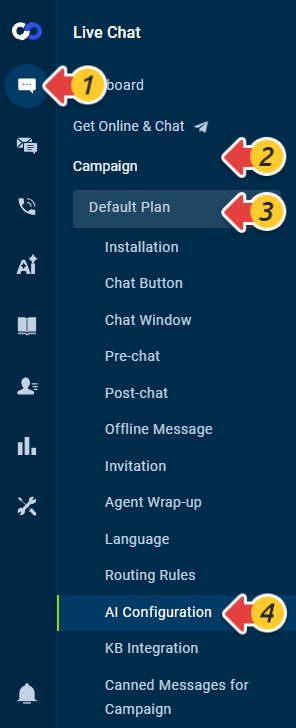

You can repeat the steps to deploy the AI Copilot to other Live Chat campaigns.
Deploy the AI Copilot to Ticketing & Messaging
To deploy the AI Copilot to a Ticketing & Messaging channel, follow these steps:
- On the Comm100 Control Panel, navigate to Ticketing & Messaging > Channels.
- Select the channel of the AI Copilot. The following steps take Email as an example.
- Click the AI Configuration tab, click the edit icon against the channel account you want to apply the AI Copilot to.
- On the Edit AI Configuration page, choose the AI Copilot from the drop-down list.
- Click Save.


You can repeat the steps to deploy the AI Copilot to other integrated accounts of the same channel.