This article applies to you if you have a Via Benefits reimbursement account (sometimes known as a Health Reimbursement Arrangement)*.
You can submit a reimbursement request on the Via Benefits Accounts mobile app, on the website, or by mail. You have the option to use Automatic Premium Reimbursement, Express Reimbursement, Recurring Premium Reimbursement, or one-time reimbursement. Automatic Premium Reimbursement and Express Reimbursement are the preferred reimbursement method. These methods don't require supporting documentation. Recurring Premium Reimbursement and one-time reimbursement requests require that we receive supporting documents before the request can be reviewed. Premium expenses require a Proof of Coverage Letter or premium statement. Out-of-pocket expenses require itemized receipts or Explanation of Benefits. The status of your reimbursement request displays once it’s processed.
Please note: Processing times may be longer than expected from January through March.
Checking the Status of Your Reimbursement Request
Note: Some information may be cut off if you set your browser to 125% zoom or higher. We recommend using 100% zoom and expanding your browser.
Once your reimbursement request is processed, follow these steps to view its status:
- Sign into Via Benefits and select the name of the family member whose funding information you want to view.
- Select View Accounts in the Funds and Reimbursements section.
- Select Visit the Reimbursement Center for the desired account on the Request Reimbursement and Manage Funds tab.
- Select HRA at the top of the page.
Note: The HRA tab is customized for your former employer or benefits provider and may have a different name (e.g., ARA, RRA)**.
5. Select the desired plan year (below the Via Benefits logo).
6. Select the Activity tab.
7. Review the Status column to find the status of a request.
8. Select the status button (e.g., Payment Sent, Denied) to view Activity Details.
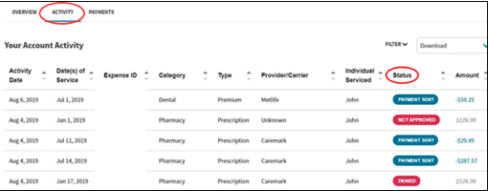
Activity Details explains the status of a reimbursement request and any action that must be taken. For example, if the request wasn't approved, and you select the Resolve Issue link, there's information about what's needed to process your reimbursement request.
When an expense requires action it displays in the Items Need Your Attention section on the Dashboard. The status of the expense appears with a Resolve link which provides information about what is needed to process your reimbursement request.
